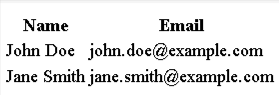
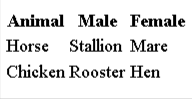
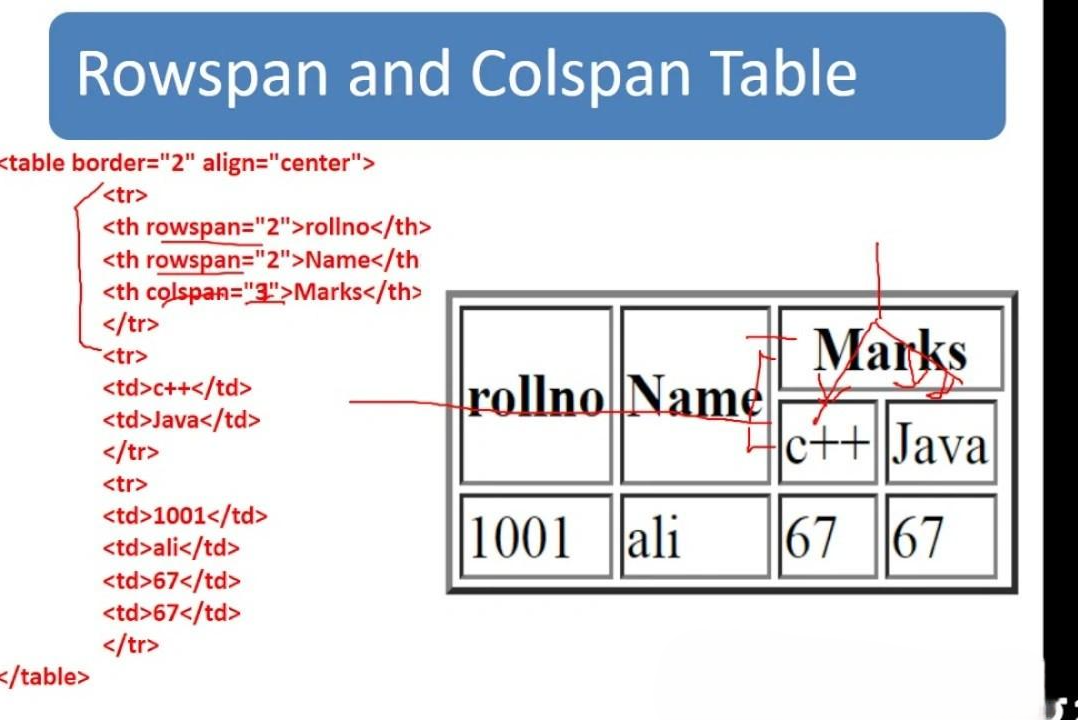
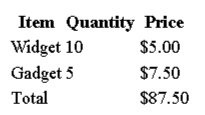
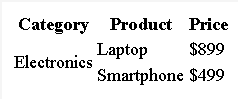
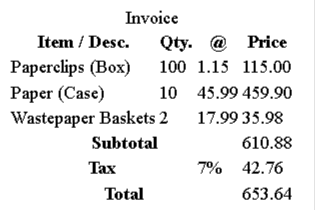
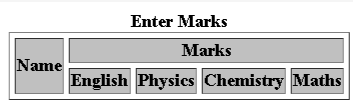
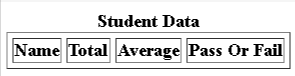
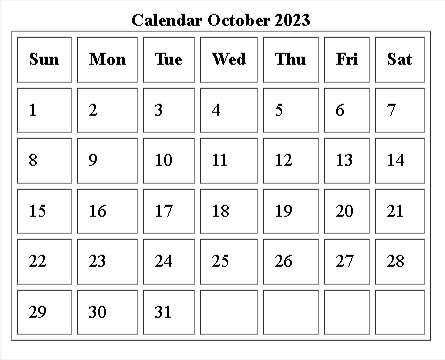
These examples demonstrate how colspan and rowspan transform basic table grids into sophisticated data presentation systems that clearly communicate relationships between information elements.
Understanding the directional behavior of these attributes determines successful table implementation. Each attribute serves specific structural purposes that become apparent through practical application.
| Attribute |
Direction |
Syntax |
Visual Effect |
| colspan |
Horizontal |
<td colspan="2">Content</td> |
Cell extends right |
| rowspan |
Vertical |
<td rowspan="2">Content</td> |
Cell extends down |
Both attributes require positive integer values, specifying exactly how many columns or rows the cell should span. The value directly corresponds to the number of standard grid positions the merged cell will occupy.
Application Guidelines
Colspan Applications: Header groupings benefit most from horizontal spanning. Multi-column headings that organize related data columns create clear visual hierarchy Life Expectancy By Current Age. Summary rows in financial documents use colspan effectively, where labels like "Subtotal" span multiple columns while amounts remain in dedicated cells.
Rowspan Applications: Vertical organization suits hierarchical data structures Life Expectancy By Current Age. Category labels that apply to multiple related rows create cleaner presentations. Student report cards use rowspan for student names spanning multiple subject rows. Product catalogs benefit from category headers spanning multiple item rows.
Strategic Implementation: Colspan proves most valuable for headers grouping columns, establishing clear horizontal organization. Rowspan excels at vertical organization, helping merge cells for cleaner appearance. Both attributes work together effectively in complex table structures where different areas require different spanning approaches.
Historical Context: Table-based webpage layouts previously overused these attributes for general design purposes. The elements to arrange the payout of a web page. Both `colspan=` and `rowspan=` attributes were often used to create table cells of various configurations. This kind of table-based layout is strongly discouraged today.">Modern web development strongly discourages this practice in favor of CSS and flexible layout strategies. These attributes should focus exclusively on enhancing tabular data presentation.
Common Table Structure Mistakes and Solutions
Professional table development requires attention to structural details that can break layouts when overlooked. These common errors appear frequently, even among experienced developers, but understanding them prevents hours of debugging time.
Incorrect Span Values
Span value errors create the most persistent table layout problems. Two primary issues dominate troubleshooting sessions:
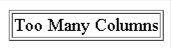
Exceeding Available Columns: When colspan values exceed total table columns, browsers struggle with proper rendering. Consider this problematic structure:
<table border="1">
  <tr>
    <td colspan="4">Too Many Columns</td>
  </tr>
</table>
Output
This table attempts a 4-column span but only contains space for three total columns. Browsers handle this inconsistently, creating unpredictable layouts.
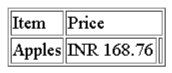
Uneven Row Structure: Each table row must maintain consistent effective column counts after accounting for merged cells:
<table border="1">
  <tr>
    <td>Item</td>
    <td colspan="2">Price</td>
  </tr>
  <tr>
    <td>Apples</td>
    <td>INR 168.76</td>
    <td></td>
  </tr>
</table>
Output
The first row spans three columns total, while the second row only contains two cells. This structural mismatch causes alignment problems and visual distortion.
Cell Alignment Problems
Misaligned tables stem from several structural issues:
Empty Cell Rendering: Browsers assign minimal width to empty table cells by default. This affects adjacent cell positioning, creating unexpected spacing that disrupts your intended layout.
Column Count Calculations: Total effective columns must remain consistent throughout the table structure. When merged cells occupy space in subsequent rows, you must remove the corresponding cells to maintain proper alignment.
Browser Rendering Variations: Different browsers handle complex colspan/rowspan combinations with subtle variations, particularly when dealing with edge cases or unusual span values.
Solution Approach: Add placeholder content to empty cells, calculate column totals carefully considering merged cells, and test across multiple browsers during development.
Layout Design Overuse
Table attributes work best within their intended scope presenting tabular data. Problems arise when developers push these tools beyond appropriate boundaries:
Accessibility Challenges: Screen readers encounter difficulties interpreting complex merged cell structures. Multiple span attributes create confusion for assistive technology users, reducing content accessibility.
Maintenance Complexity: Tables containing numerous colspan and rowspan attributes become difficult to read and modify. Code maintenance suffers as table structure complexity increases.
Responsive Design Limitations: Tables resist responsive design adaptation compared to modern CSS layout methods. Fixed table structures don't adjust gracefully to different screen sizes.
Modern web development reserves HTML tables for actual tabular data presentation. CSS Grid and Flexbox provide superior solutions for page layout requirements, offering better flexibility, cleaner code structure, and enhanced accessibility support.
Proper implementation requires understanding these limitations and choosing appropriate tools for specific layout challenges. Table attributes excel at organizing related data but fall short for general page structure requirements.
HTML Table Rowspan and Colspan: Key Questions Answered
Understanding table cell merging requires addressing common implementation questions. These frequently asked questions cover practical concerns developers encounter when working with colspan and rowspan attributes.
Core Functions of Colspan and Rowspan
Colspan and rowspan serve distinct structural purposes to arrange the payout of a web page. Both `colspan=` and `rowspan=` attributes were often used to create table cells of various configurations. This kind of table-based layout is strongly discouraged today.Colspan allows table cells to extend horizontally across multiple columns, perfect for section headers that group related data or summary rows in financial documents. Rowspan enables vertical cell expansion across multiple rows, ideal for category labels or hierarchical data organization.
Both attributes replicate spreadsheet "merge cells" functionality, giving developers precise control over table structure. The key difference lies in their directional application: colspan affects horizontal layout while rowspan impacts vertical organization.
Combining Both Attributes
Yes, both attributes can be applied to the same cell: This creates cells spanning both horizontally and vertically, enabling complex table structures. The syntax combines both attributes within a single element:
<td rowspan="2" colspan="3">Merged cell</td>
When implementing combined attributes, adjust surrounding cell structures accordingly to maintain proper table layout integrity.
Attribute Value Limits
HTML specifications provide specific guidelines: Colspan values have no strict technical limits, though browsers clamp values to positive integers. Rowspan supports values up to 65534 in most browsers before clamping occurs. Setting rowspan="0" makes cells span to the end of table sections (thead, tbody, or tfoot) in some browsers, though this usage remains uncommon.
Browser Compatibility
All modern browsers support these attributes fully: Colspan and rowspan have been HTML standard components for many years, ensuring consistent rendering across Chrome, Firefox, Safari, Edge, and other contemporary browsers. This widespread support allows confident implementation without cross-browser compatibility concerns.
CSS Alternatives Comparison
HTML attributes remain the preferred solution for tabular data: While CSS Grid and Flexbox provide layout capabilities, they lack direct equivalents to rowspan and colspan for actual tabular data presentation. CSS can create table-like visual structures but doesn't replicate the semantic meaning and accessibility features of proper HTML table markup.
Tables were historically misused for page layouts, a practice now strongly discouraged. However, for presenting genuine tabular data relationships, HTML tables with colspan and rowspan remain the most appropriate and accessible solution.
Conclusion
HTML table cell merging transforms data presentation through two essential attributes. Colspan extends cells horizontally across columns, while rowspan stretches cells vertically through rows. Together, these tools solve layout challenges that standard grid structures cannot address effectively.
Professional table design requires strategic application of these attributes:
Invoice Tables: Use colspan for summary rows where labels span multiple columns while keeping amounts separate.
Report Cards: Apply rowspan for student identifiers or categories that extend across multiple subject rows.
Calendar Layouts: Combine both attributes for complex scheduling needs, with headers spanning columns and events spanning rows.
The most critical insight: These attributes excel specifically at presenting tabular data, not general page layouts. Modern CSS techniques handle layout responsibilities, leaving colspan and rowspan to serve their intended purpose of organizing actual data relationships.
Common implementation mistakes include setting span values that exceed available columns, creating uneven row structures, and overusing tables for non-tabular design purposes. Each error creates accessibility barriers and maintenance challenges that proper planning prevents.
In Short, HTML table colspan and rowspan attributes provide essential cell merging capabilities for professional data presentation. Use colspan for horizontal grouping, rowspan for vertical organization, and both together for complex structures. Reserve these powerful tools for actual tabular data where they enhance readability and clearly communicate information relationships.
The next time your data requires more than a basic grid structure, these attributes offer the precision control needed to create organized, accessible table presentations that serve both users and screen readers effectively.
Key Takeaways
Master HTML table cell merging to create professional, organized data presentations that enhance readability and user experience.
• Colspan spans horizontally across columns - Use colspan="number" to merge cells across multiple columns, perfect for section headers and summary rows in invoices or reports.
• Rowspan extends vertically down rows - Apply rowspan="number" to merge cells across multiple rows, ideal for creating category groupings and hierarchical data structures.
• Both attributes work together seamlessly - Combine colspan and rowspan on the same cell to create complex table layouts that span both directions simultaneously.
• Avoid common mistakes that break layouts - Ensure span values don't exceed total columns, maintain consistent row structures, and reserve tables for actual data presentation, not page layouts.
• All modern browsers fully support these attributes - Use colspan and rowspan confidently across Chrome, Firefox, Safari, and Edge without compatibility concerns.
These HTML table attributes remain the most appropriate solution for presenting tabular data, offering superior control over CSS alternatives while maintaining accessibility and cross-browser consistency. When implemented correctly, they transform basic tables into sophisticated data presentation tools that clearly communicate relationships and hierarchies within your content.
FAQS
Q1. How do I merge cells across multiple columns in an HTML table?
To merge cells horizontally, use the colspan attribute within a will create a cell that spans three columns.
Q2. Can I use both colspan and rowspan attributes on the same cell?
Yes, you can apply both colspan and rowspan to a single cell. This allows you to create cells that span both horizontally and vertically, enabling complex table structures.
Q3. What's the maximum value I can use for colspan or rowspan?
There's no strict technical limit for colspan values. For rowspan, browsers typically support values up to 65534. However, it's best to use values that make sense for your table structure.
Q4. Are colspan and rowspan supported by all modern browsers?
Yes, all modern browsers fully support both colspan and rowspan attributes. You can use these attributes confidently across Chrome, Firefox, Safari, Edge, and other contemporary browsers.
Q5. Should I use CSS instead of colspan and rowspan for table layouts?
For presenting actual tabular data, HTML tables with colspan and rowspan remain the most appropriate solution. While CSS can create table-like structures, it lacks direct equivalents to these attributes for manipulating table cell merging.






.avif)