Key Takeaways From the Blog
- Java applets are small programs once used for interactive web content but now deprecated.
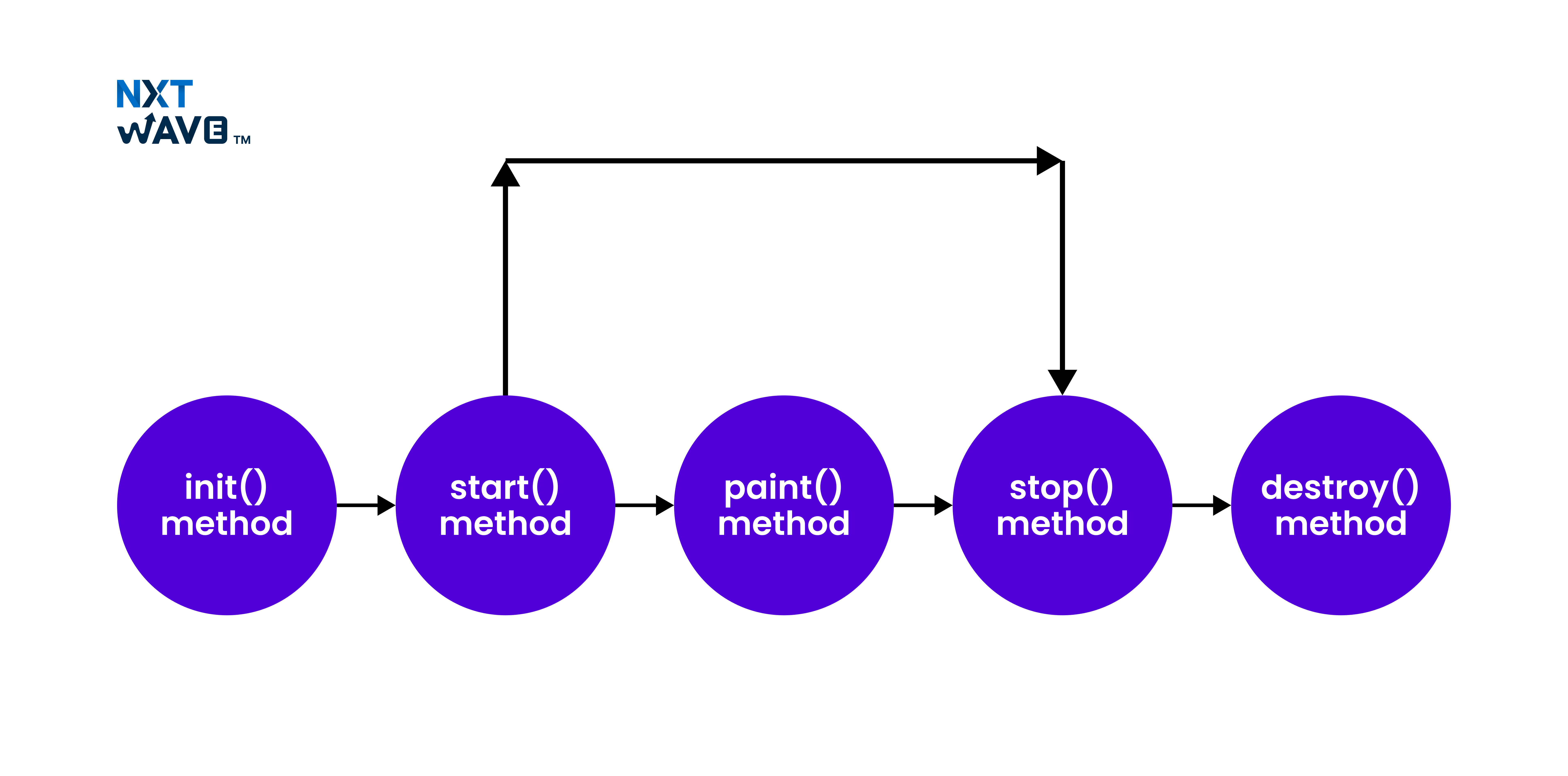
- They run inside a browser using a JVM and follow a strict lifecycle (init → start → paint → stop → destroy).
- Applets come in many types: Java applets, IFTTT applets, signed/unsigned, web-based, mobile, and more.
- Besides those, they also provide support for graphics, event handling, multimedia, and parameterized behavior.
- Different types of applets include calculators, graphing tools, 3D visualizations, games, and educational tools.
- Although applets are no longer in use nowadays, they still matter from the point of view of the history of interaction with web systems.
Introduction
In web development, Java applets were a standard tool for delivering dynamic and interactive content on web pages. Due to browser maturity and security concerns, applets have become ineffective. While this is still the case, understanding applets is an integral part of learning about web technology and more about how earlier interactive content was integrated into sites.
This article discusses all the fundamentals Applet in Java, Applet definition in Java, Applet life cycle, talking to web pages, handling user events, showing images, and even sounds. We will also discuss how to convert typical Java programs into Applets and learn their pros and cons.
What is an Applet in Java?
An Applet in Java is a small program that is executed within a web browser. In contrast to stand-alone Java programs, which are executed on a user's desktop, applets are written to be embedded into a web page. Applets are based on the Java plugin in browsers, which executes the applet's bytecode.
Java applets, when they were popular, were the tools that developers could use to make visually appealing, interactive web pages without the need for the browser's native functionalities or a complex client-server setup. Currently, applets are predominantly used in the continued existence of old-style applications. Due to the presence of more secure and versatile technologies like HTML5, CSS3, JavaScript, and WebAssembly, applets have not been used substantially in modern web development.
Types of Applets in Java
Here are the types of applets in Java:
1. Java Applets
Java applets are small Java programs that operate within a web browser from a Java plugin. They were once used to offer interactive content such as games, animations, and forms on a web page. Java applets need the Java Runtime Environment (JRE) installed on the client machine.
Key Characteristics
- Embedded in web pages.
- Need a Java plugin-enabled browser.
- Security issues and the absence of contemporary support have been made virtually ineffective.
2. IFTTT Applets
IFTTT applets are programmable features through which individuals can program triggers and operations for specific events between various applications and services. A sample of an IFTTT applet could be an instance that posts automatically on Twitter whenever an individual posts a fresh image on Instagram.
Key Characteristics
- Allows task automation across different platforms (e.g., smart home, social media).
- No coding required; end-users construct "recipes" or workflows.
- Supported by many services and devices like Google, Facebook, Twitter, etc.
3. Grail Applets
Grail applets are the tiny components or coding fragments used in the Grail project, a web browser for Python programming. The Grail browser is experimental, and its applets were designed to provide additional functionality to the browser, like an enhanced user interface or exotic web interactions.
Key Characteristics
- Part of the project of the Grail web browser (Python-oriented).
- Its purpose is to extend browser capabilities or to generate custom web page behavior.
- Not commonly used nowadays since other browsers have mostly substituted for Grail.
4. Local Applet
A local applet is executed on the user's local machine (e.g., a personal computer). It does not need internet access and can interact with local resources such as files or hardware devices.
Key Characteristics
- Executed directly from the user's local machine.
- Needs no web browser or internet connection.
- It can be utilized to perform operations like hardware control or file manipulation.
5. Remote Applet
A remote applet is executed from a remote server over the Internet. It can be controlled by a web browser and read or send data to a remote server.
Key Characteristics
- Executed on a remote server but accessed through a browser.
- Dependent on network connectivity to operate.
- Usually utilized for web applications or interactive web content on websites.
6. Web-Based and Mobile Applets
Web-based applets are tiny applications downloaded and executed via a web browser. Mobile applets, however, are tiny applications intended to run on cellular devices (smartphones and tablets). Both applets usually interact with the Internet and are utilized for web browsing, media streaming, or other lightweight functionality.
Key Characteristics
- Web-based applets execute within a browser, whereas mobile applets execute on handheld devices.
- Interactive web utilities, calculators, and cell phone widgets are examples.
- Small and for specific purposes or functionalities, mobile applets are usually.
7. Signed Applets
Signed applets are digitally signed Java applets by a trusted certificate authority (CA). They assure their authenticity, have not been altered, and can be given extra privileges to access resources on the user's machine.
Key Characteristics
- Signed by a trusted party to provide authenticity and security.
- Can ask for access to restricted resources (e.g., file systems or system settings).
- Applets must be able to run with elevated permissions, particularly on older browsers or in stringent security policy settings.
8. Self-Signed Applets
Self-signed Applets is one of the types of Applets in Java that are signed digitally, but the signature is generated by the Applet builder, not by some trusted certificate authority. Such Applets can likely check for their own integrity, but they will remain untrusted to other users unless they explicitly accept the signature.
Key Characteristics
- Signed by the applet author but not by a prominent certificate authority.
- Tend to trigger security warnings in browsers.
- They are less trusted than apps signed by familiar authorities.
9. Unsigned Applets
Unsigned applets are Java applets that are not digitally signed. Without a certificate, web browsers will typically identify them as being insecure, and they will not run in new browsers or operating systems that rigorously follow security policy.
Key Characteristics
- No certification or signature to attest to the applet's integrity or source.
- Can be blocked by more recent browsers for security reasons.
- Generally not trusted, it will likely show users a potential security risk, such as malware or malicious code.
Key Takeaways So Far
- An applet in Java is a browser-embedded program executed via JVM.
- Applets were the primary method for introducing interaction to the web of yesteryear; however, they were gradually removed because of their restricted security and efficiency.
- Different applet forms consist of old Java applets, contemporary IFTTT, and mobile variations.
- Applets had a major role in the development of interactivity on the early web.
Applet Class and Hierarchy
The classes of Java applets form an explicit hierarchy, which essentially represents their structure, inheritance, and features. Knowing this hierarchy is to a large extent the basis for understanding the operation of applets and their connection with other Java classes.
Applet Class Hierarchy
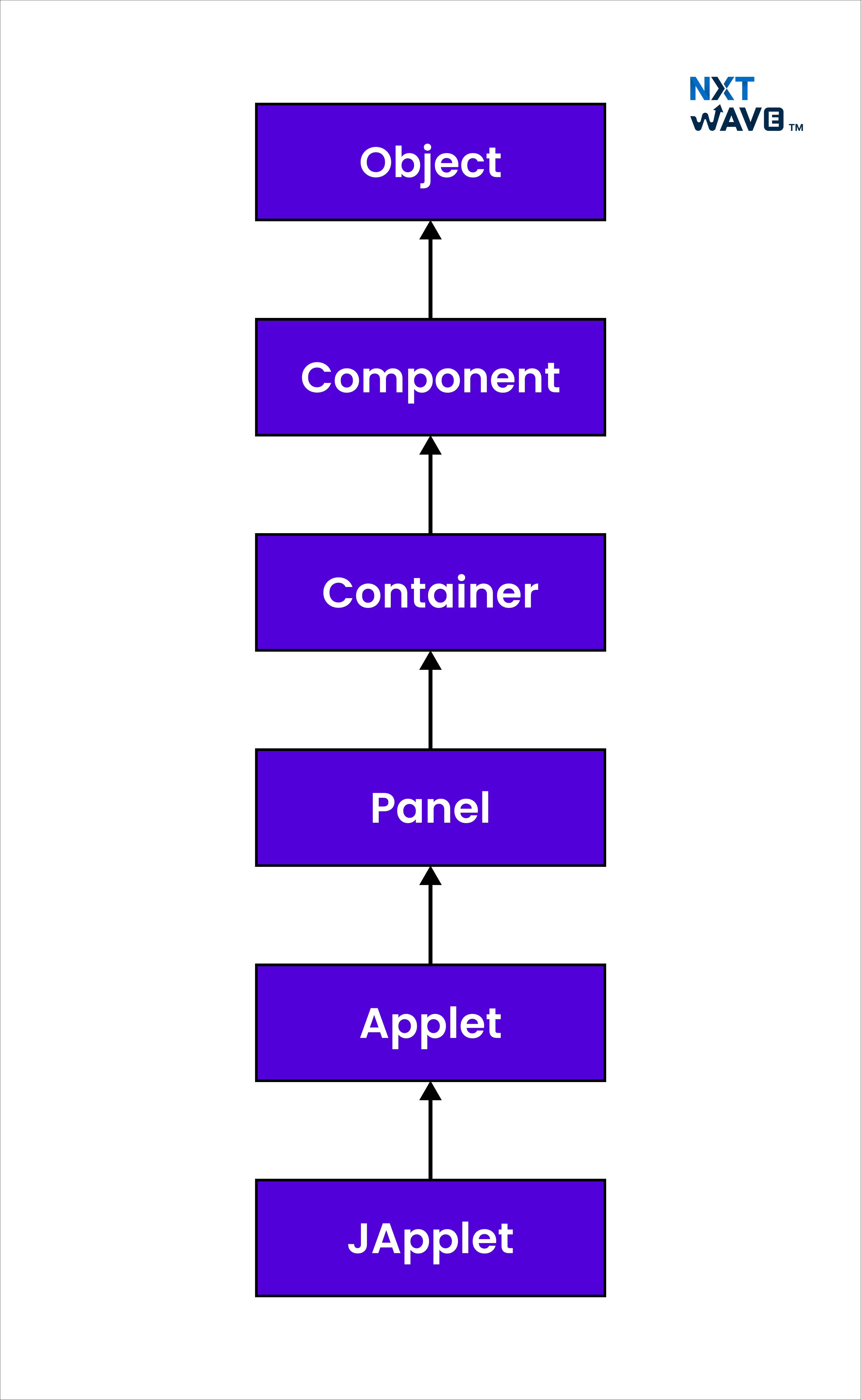
Applets are basically subclasses of the Applet class, a class in the Java.Applet package. The class is the primary support framework for an Applet, managing the life cycle of the Applet by methods like init(), destroy(), and resource management. So, any Applet you write is by definition a subclass of the Applet class in Java, and therefore, it must be extended to inherit the required functionality and lifecycle behavior.
The typical inheritance hierarchy for an AWT-based applet is as follows:
- Object: The universal superclass for all Java classes.
- Component: The base class for all visual elements that can be displayed on the screen.
- Container: Compoment subclass, which can be made up of and structured other components.
- Panel: Container subclass, used as a base container for grouping the components that are closely related.
- Applet: A Subclass of Panel, a class that is intended to develop applets that can be run in browsers or applet viewers. For Swing-based applets, the hierarchy extends further:
- JApplet
Part of the Swing toolkit, JApplet is a subclass of Applet that allows the use of advanced GUI components from the Swing library.
Applet Skeleton and Overridden Methods
An applet skeleton refers to the minimal structure required for an applet. It typically involves creating a class that extends the Applet class and overrides methods such as init(), start(), stop(), destroy(), and paint(). These methods manage the applet's lifecycle and graphical output.
Hierarchy of Applet
Here is the hierarchy of the applet:
Lifecycle of Java Applet
The Java Applet lifecycle defines an applet's various stages from start to finish. The browser or executing applet viewer controls the lifecycle and includes the following key methods, which are part of the java.applet.Applet (or javax.swing.JApplet for Swing) class:
Stages of the Java Applet Lifecycle
Here are the stages of applet life cycle in java:
1. Initialization (init())
- This is referred to when the applet is loaded into memory for the first time. It is utilized for one-time applet initialisation, including setting variables, resource initialization, or user interface initialization.
- Once the applet gets loaded in the applet viewer or web browser, it gets invoked.
Example
public void init() {
    // Initialization code, like setting up graphics or loading resources
    System.out.println("Applet Initialized");
}
2. Start (start())
- This is invoked after init() and whenever the browser loads or revisits the applet page. It initializes any processes, like animation or other activities, that must be activated when the applet appears on screen.
- It is invoked after init() has been called and whenever the user visits the applet's page again (i.e., the page that includes the applet within a web browser).
Example
public void start() {
    // Code to start animations or threads
    System.out.println("Applet Started");
}
3. Paint (paint())
- In the Applet life cycle in Java, paint() is invoked whenever the Applet needs to repaint or redraw its display. The paint() method is automatically called when the Applet screen needs to be refreshed, such as when the window size changes or when it is minimized and restored.
- It is invoked after start() or whenever the Applet’s user interface needs to be repainted.
Example
public void paint(Graphics g) {
    // Drawing code
    g.drawString("Hello, World!", 20, 20);
}
4. Stop (stop())
- The method is called when the applet execution is suspended or the user leaves the applet's page. Besides, it ceases any activity, like animation or threads, that may be going on and releases those resources that are not needed if the applet is not visible.
- It is invoked when the applet is no longer displayed (e.g., when the user navigates away from the page on which the applet is being run or shuts down the browser).
Example
public void stop() {
    // Stop animations or threads
    System.out.println("Applet Stopped");
}
5. Destroy (destroy())
- When the applet is removed from memory, this method is called. To release any resources that the applet may have acquired, such as closing files, stopping threads, or releasing network sockets, it is used.
- It is the method that is called directly before the applet terminates, which is usually the case when the user leaves the page where it is running or the browser closes.
Example
public void destroy() {
    // Cleanup code, release resources
    System.out.println("Applet Destroyed");
}
Key Takeaways so far
- Applets inherit from the Applet or JApplet class within a defined component hierarchy.
- Five lifecycle methods—init, start, paint, stop, destroy—control an applet’s execution flow.
- The Applet life cycle in Java explains how an Applet is loaded, started, displayed, paused, and destroyed during execution.
- Applet lifecycle is browser-driven, making it different from standalone Java applications.
- Understanding lifecycle methods is essential for debugging and animation.
How to Run an Applet?
Executing an applet is a little old-fashioned these days since applets were originally intended to be executed within web browsers through Java. Nevertheless, Java applets have mostly fallen out of use, and their support has been disabled in most web browsers. Still, if you're using Java applets and wish to execute one locally or within a system that still maintains support for them, this is how you accomplish it:
1. Install Java Development Kit (JDK)
Ensure you've installed JDK on your machine before executing an applet. You can download it from Oracle's official website or use OpenJDK, which is open source and free.
2. Create or Get the Applet Code
You'll have the applet code as a .java file, inheriting java.applet.Applet or extending javax.swing.JApplet. Below is the example code for creating an applet in java:
import java.applet.Applet;
import java.awt.Graphics;

public class HelloWorldApplet extends Applet {
    public void paint(Graphics g) {
        g.drawString("Hello, Applet World!", 50, 60);
    }
}
3. Compile the Applet
You must compile the Java code into bytecode (a.class file) by using the javac command.
- Open a terminal/command prompt.
- Change to the directory where the.java file is.
- Execute the following command to compile it:
javac HelloWorldApplet.java
This will generate a HelloWorldApplet.class file.
4. Create an HTML File to Run the Applet
Since browsers no longer natively support applets, you can use an HTML file containing the applet tag to load and execute the applet. You can do this by simply following these steps:
<html>
  <body>
    <applet code="HelloWorldApplet.class" width="300" height="300">
    </applet>
  </body>
</html>
5. Executing the Applet with Applet Viewer
Java ships with the appletviewer utility, which you can use to execute an applet independent of a browser.
i) Save the HTML file (e.g., applet.html).
ii) In the command prompt/terminal, navigate to the directory where the applet.html file is compiled.class files reside.
iii) Run the following command:
appletviewer applet.html
This will execute the applet in the appletviewer environment, a window miming a browser's applet behavior.
6. Alternative: Using a Java Application
Suppose you want an alternative to running an applet and you want to execute the applet's functionality on a newer system. In that case, you can re-encode the applet as a regular Java application using JFrame or other GUI objects. Applets are usually no longer needed because Swing and JavaFX are better for GUI programming.
Quick Note: Applets in Java respond to user actions through listeners like ActionListener and MouseListener for interactive experiences.
Event Handling in Applets
Java applets support user interaction through a robust set of event-handling mechanisms. By leveraging interfaces like ActionListener and using GUI components such as Button and Label, applets can respond to user actions like clicks, key presses, and more. Event handling is essential for building interactive applets that react to user input within the sandbox environment provided by the browser or applet viewer.
Using Event Handling Mechanisms
In order to access event handling and GUI features, applets generally import java.applet and java.awt packages. To be able to respond to user actions (like pressing a button), applets implement listener interfaces like ActionListener and provide the implementation of their methods.
Example: Handling Button Clicks
Below is a simplified version inspired by eventhandling.java and EventAppletDemo.java, demonstrating how to add a Button to an applet and update a Label when the button is clicked.
import java.applet.Applet;
import java.awt.*;
import java.awt.event.*;

public class EventAppletDemo extends Applet implements ActionListener {
    Button myButton;
    Label myLabel;

    public void init() {
        myButton = new Button("Click Me");
        myButton.addActionListener(this); // Register event handler
        add(myButton);

        myLabel = new Label("Waiting for click...");
        add(myLabel);
    }

    public void actionPerformed(ActionEvent e) {
        myLabel.setText("Button clicked!");
    }

    public void stop() {
        // Clean up resources if needed when the applet is stopped
    }
}
Key Points:
- GUI components (Button, Label) are added to the applet.
- The applet implements ActionListener to handle button events.
- The actionPerformed method updates the label when the button is clicked.
- The stop() method can be used to release resources or suspend activities when the applet is no longer visible.
Working with Parameters
You can also use parameters to configure event-driven behavior or display messages dynamically, further enhancing interactivity.
Key Takeaways so far
- Modern browsers no longer support applets; they require appletviewer or legacy environments.
- Running an applet involves writing code, compiling it, embedding it in HTML, and executing via appletviewer.
- Applets can be converted into modern Java desktop apps using Swing or JavaFX.
- Applet viewer provides a browser-like environment for testing.
Java applets can effectively develop customer-friendly and attractive experiences by using the AWT (Abstract Window Toolkit) and other classes that are associated with it. Through the use of the graphics class and different drawing methods, developers are capable of generating figures, pictures, words, and also multimedia content such as sound and animation, all in the graphical user interface of the applet.
Drawing with the Graphics Class
The core of applet graphics lies in overriding the paint() method. The paint(Graphics g) method receives a Graphics object, which provides powerful drawing capabilities.
- drawString(): Renders text at a specified location.
- drawRect(): Draws rectangles.
- drawImage(): Displays images.
- drawLine(), drawOval(), fillRect(), and more: Used for various shapes.
Example: Drawing Shapes and Text
public void paint(Graphics g) {
    g.drawString("Hello, Applet!", 20, 20); // Draw text
    g.drawRect(50, 50, 100, 60);            // Draw rectangle
}
Working with Images
To display images, use the getImage() method to load an image and drawImage() method to render it. The ImageObserver interface is often used to track image loading.
Image img;

public void init() {
    img = getImage(getCodeBase(), "picture.jpg"); // Load image
}

public void paint(Graphics g) {
    g.drawImage(img, 10, 10, this); // 'this' is the ImageObserver
}
Animation
Applets can display animation by repeatedly updating the graphics displayed in the paint() method, often using timers or separate threads to trigger repaints.
Handling Mouse and User Interaction
For interactive graphics, implement MouseMotionListener to respond to mouse movements and drags, allowing for features like drawing or painting within the applet window.
Multimedia: Audio Clips
Applets can play audio clips by using the AudioClip interface and methods like getAudioClip() to load sounds and play() to trigger playback.
Quick Note: Applets use AWT graphics, images, animation, and audio to create engaging visual and multimedia elements.
Example Java Programs of an Applet
Here are the example programs of Java applet:
1. Simple Applet Program in Java
Here is the java applet simple program:
import java.applet.Applet;
import java.awt.Graphics;

public class HelloWorldApplet extends Applet {
    public void paint(Graphics g) {
        g.drawString("Hello, World!", 20, 20);
    }
}
Explanation
- The Java.Applet is the superclass for Applet creation in Java, and Java.awt.Graphics is used for graphical output on the screen.
- HelloWorldApplet is a subclass of Applet, a Java program that executes within a browser or applet viewer.
- The paint() method is overridden to print text (in this case, "Hello, World!") onto the applet window. The Graphics object g is used to draw strings, shapes, and other graphical material.
- It will draw the string "Hello, World!" at the position (20, 20) of the applet.
Output
// The output will be a simple window with the string
"Hello, World!"
2. Applet with Parameters
Here is the applet in java program with parameters:
import java.applet.Applet;
import java.awt.Graphics;

public class HelloWorldApplet extends Applet {
    String message;

    public void init() {
        message = getParameter("message");
    }

    public void paint(Graphics g) {
        g.drawString(message, 20, 20);
    }
}
Explanation
- In the init() method, the getParameter() method is utilized to obtain the parameter "message" passed from the HTML file.
- The parameter is specified in an HTML file while calling the applet.
- Then the applet prints the message on the screen using the paint() method.
HTML (for invoking the applet):
<applet code="HelloWorldApplet.class" width="300" height="300">
    <param name="message" value="Hello from HTML!">
</applet>
Output
// When the applet runs, it will display the message
"Hello from HTML!"
3. Applet with Event Handling (Mouse Click)
Here is the applet code in java for event handling or mouse click:
import java.awt.event.MouseListener;
import java.awt.event.MouseEvent;
import java.applet.Applet;

public class HelloWorldApplet extends Applet implements MouseListener {

    public void init() {
        addMouseListener(this); // Registers the applet as a listener for mouse events
    }

    public void mouseClicked(MouseEvent e) {
        System.out.println("Mouse clicked!");
    }

    // Other mouse event methods can be implemented as needed
    public void mousePressed(MouseEvent e) {}
    public void mouseReleased(MouseEvent e) {}
    public void mouseEntered(MouseEvent e) {}
    public void mouseExited(MouseEvent e) {}
}
Explanation
- The applet implements the MouseListener interface, which requires methods to be invoked when a mouse event occurs, such as a click or press.
- Registers the applet itself as the mouse event listener.
- Prints "Mouse clicked!" to the console whenever a mouse click event occurs.
Output
// When you click inside the applet window, the message printed
"Mouse clicked!"
4. Displaying an Image in an Applet
Here is the Applet program in Java for displaying an image:
import java.applet.Applet;
import java.awt.Graphics;
import java.awt.Image;
import java.awt.Toolkit;

public class ImageApplet extends Applet {
    Image img;

    public void init() {
        img = Toolkit.getDefaultToolkit().getImage("image.jpg"); // Load the image
    }

    public void paint(Graphics g) {
        g.drawImage(img, 20, 20, this); // Draw the image at position (20, 20)
    }
}
Explanation
- Toolkit.getDefaultToolkit().getImage() method loads the image from the file system or a URL.
- The drawImage() method is called to display the image at the given position (in this case, at position (20, 20)) on the applet window.
Output
// The applet window will display the image
image.jpg
5. Playing Audio in an Applet
Here is the applet program for playing an audio:
import java.applet.Applet;
import java.applet.AudioClip;
import java.net.URL;

public class AudioApplet extends Applet {
    AudioClip clip;

    public void init() {
        URL url = getClass().getResource("audio.wav"); // Load the audio file
        clip = getAudioClip(url); // Get the audio clip
    }

    public void start() {
        clip.play(); // Start playing the audio
    }

    public void stop() {
        clip.stop(); // Stop the audio when the applet is stopped
    }
}
Explanation
- In this Applet program in Java, getClass().getResource("audio.wav") reads the audio file from where it is being run or from a URL.
- getAudioClip(url) returns an AudioClip object that can make the applet play the audio.
- clip.play() plays the audio when the applet is initiated.
- clip.stop() stops the audio when the applet is terminated.
Output
// When it starts, the applet will play the audio file. If the audio file is not found, it won't play.
audio.wav
Quick Note: Java Applet programs examples with output help demonstrate drawing, event handling, parameters, media playback, and interactive features in a simple and practical way.
Difference Between Applets and Applications
Here are the key differences between applets and apps:
| Aspect |
Applets |
Applications |
| Execution Environment |
Run in a web browser or applet viewer |
Run independently of a web browser |
| System Access |
Limited in access to the system (sandboxed for security) |
Permitted to access system resources such as files, network, etc. |
| Primary Use |
Primarily used for interactive web page content |
Used for standalone programs, including those with a GUI |
| Main Method |
No main() method; lifecycle managed by the browser |
Contain a main() method as an entry point and are typically more capable |
Applications of Applets Used in Real Life
Here are a few applications of applets used in real life:
1. QuickTime Movies (Applet)
QuickTime is an online multimedia platform upon which videos, audio, and other media types are played within an applet. QuickTime applets can be incorporated into web pages so users are able to watch movies or hear music inside their browser using nothing but their browser.
2. Interactive Graphing Calculators (Applet)
Applets which enable users to enter mathematical functions and view the graphs in real time. Such programs can enable students and scientists to understand advanced mathematical concepts using visual representation.
3. Windows Media Player (Applet)
Like QuickTime, Windows Media Player streams audio and video media into a web browser. The application can embed websites to play or stream media files within the browser window.
4. Virtual Whiteboard Applet
A virtual whiteboard applet is an online space where users can draw, write, and exchange ideas. They are generally used for collaborative work during business meetings, education, or brainstorming.
5. Game of Life Applet
The Game of Life is a cellular automaton designed by mathematician John Conway. Used as an applet, it shows how simple rules (cellular states) can create complicated patterns in the future. Using this applet, one can experiment with various initial configurations and see what becomes of the game.
6. 3D Visualization for Research and Education
Applets are interactive computer programs that visualise 3D in research or education. Through them, users can show and manipulate 3D models. Applets may be used to visualise data, molecules, topography, or other scientific or educational phenomena more intuitively and interactively.
7. Weather Visualization Applet:
This applet shows live weather data, including temperature, humidity, and wind speed, and enables users to see the data through interactive maps or graphs. It can be used in websites for weather prediction or educational purposes.
8. Oracle's Java 3D API (Applet)
Java 3D is an API for developing three-dimensional graphics for web applications. Applets developed using this API enable users to visualize and interact with 3D worlds, which can be utilized in areas such as virtual reality, engineering, and entertainment.
9. Stock Market Data Applet:
Applets that enable users to view and interact with real-time stock market data. Users can monitor price changes, graph market trends, and make financial decisions based on real-time data.
10. Applets for Teaching Photography
These applets illustrate photographic methods, including lighting, exposure settings, and composition. They are interactive programs that enable students to view the effect of varying various photographic settings in real time.
Bottom Line: Applets powered educational tools, visualizations, calculators, games, and multimedia players in early web development.
Advantages of Applets
Here are the advantages of applets in java:
- Platform Independence: The code can run on any platform that has a Java Virtual Machine (JVM) installed.
- Security: The program runs in a sandbox, limiting its access to the system resources.
- Ease of Use: It is easy to use as it is nicely embedded in the web pages without the need for any extra software.
- Interactivity: Interactive content (e.g., games, simulations) supported.
- Rich UI: Dynamic and visually rich user interfaces are supported.
- Web Integration: Interacts with HTML, JavaScript, and other web components.
- Educational Use: Ideal for simulations and learning tools.
Quick recap: Cross-platform ability, interactivity, and secure sandboxing made applets useful for early web applications.
Disadvantages of Applets
Here are the disadvantages of applets in java:
- Deprecation: Modern browsers do not support Java applets.
- Security Risks: If a system is exploited, it may open up vulnerabilities.
- Performance: The native apps are not fast as they rely on JVM.
- Browser Compatibility: Need Java plugins or compatible versions.
- User Experience Issues: It is necessary that the Java Runtime Environment (JRE) is installed.
- Limited Functionality: Cannot use local system resources, limited to web browsers.
- Mobile Incompatibility: Not supported for mobile browsers.
- Obsolete: Stopped plugin support for Java.
Key Takeaways so far
- Applets were the driving force behind a number of real-world tools such as calculators, weather widgets, media players, and 3D visualizers.
- The pros were platform independence, rich UI, and easiness of web integration.
- Cons—security risks, browser incompatibility, and lack of mobile support—were the reason they were phased out.
- Applets remain useful historically for understanding internet technology evolution.
Conclusion
In conclusion, an Applet in Java is a crucial element of web interactive development, allowing developers to offer rich multimedia material and interactivity to the web. Though their eventual demise was caused by security, performance, and compatibility issues, Applets helped to drive web programming and Java popularity.
Applets are now almost a thing of the past, having given way to web technologies like HTML5, JavaScript, and CSS3. However, Applet program in Java are crucial in web development to consider how much the web has evolved in terms of functionality, security, and user-friendliness.
Why It Matters?
Understanding Java applets highlights the foundations of web interactivity and event-driven programming. Studying applet lifecycle, graphics, and event handling builds a strong base for modern GUI and web development. It also provides insight into legacy systems, helping learners appreciate security, compatibility, and evolution in web technologies.
Practical Advice for Learners
- Applet examples help you concentrate on lifecycle methods, which are very similar to the lifecycle of UI components in modern frameworks.
- By writing Swing/JavaFX versions of your applets, you will get a better grasp of GUI modernization.
- Implementing applet event handling is a great way to improve your understanding of Java’s AWT/Swing frameworks.
- Never consider applets as a viable method for production; consequently, revere the concepts as being technology-agnostic and use them as a base for HTML5 + JavaScript.
Frequently Asked Questions
1. What is a Java applet?
A Java applet is a small interactive program that is meant to operate in a web browser. It is written in Java and executed by the Java Runtime Environment (JRE). Generally, it is embedded in HTML for user interaction.
2. What are the 4 methods of applet in Java?
The four major functions in an applet are:
- init(): Sets up the applet.
- start(): The applet is started or continued by this method.
- paint(): The visual output of the program is done through this method in the applet window.
- destroy(): If the applet is uninstalled, it is a cleaning operation.
3. What are the two applet types in Java?
There are two applet types:
- Standard Applet: Normal applet with no advanced graphing capabilities.
- Embedded Applet: Embedded in a web page to provide features like forms and games.
4. Why are applets used?
Applets were created to deliver interactive visual content in web browsers. This content could involve animations, games, info graphics, and similar things. They allowed developers to write programs that could run on any platform inside web pages thereby enhancing users’ experiences.
5. What is a GUI in Java?
GUI (Graphical User Interface) in Java means designing interactive programs using graphical components such as buttons, text fields, and labels. Java provides libraries such as Swing and AWT for designing desktop programs with graphical objects for user interaction.
6. How to create an Applet in Java?
To create an Applet in Java, extend the Applet or JApplet class, write the required methods like init() and paint(), compile the program, and run it using an Applet viewer or browser-supported environment. Applets are mostly used for learning older Java GUI concepts.
7. Describe the Applet life cycle in Java?
The Applet life cycle in Java refers to the stages an Applet goes through during execution. It includes init(), start(), paint(), stop(), and destroy() methods, which control loading, running, displaying, pausing, and closing the Applet.





.avif)